
Why Your Office Printer Keeps Disconnecting (And the Permanent Fix)
Your office printer drops off Wi-Fi every few days for a specific, fixable reason. Here's what's really happening and how Florida small businesses solve it for good.
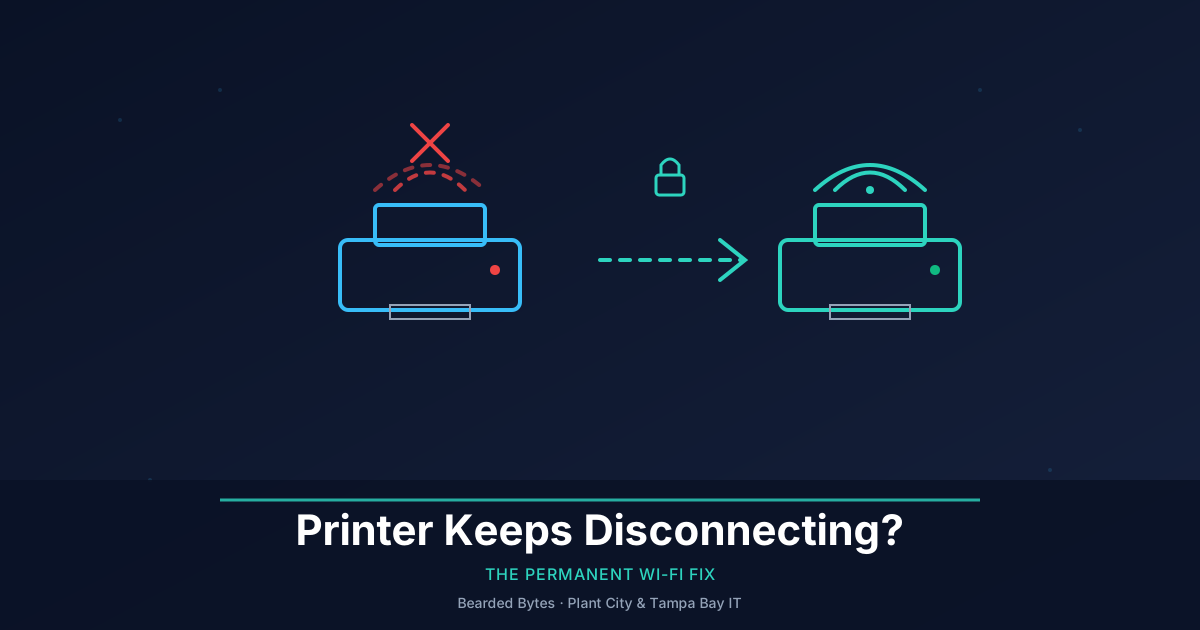
If you run a small office anywhere in Tampa Bay, I’d bet money you’ve had this exact conversation with an employee: “The printer’s offline again.” You walk over, turn it off and on, it reconnects, everyone moves on with their day. Then it happens again next Tuesday. And the Tuesday after that.
I’ve fixed this exact problem at enough client offices around Plant City and Lakeland that I can usually tell you what’s wrong before I even look at the network. It’s almost never the printer’s fault, and it’s almost never actually random — it just looks random because the cause is invisible unless you know where to check.
Let me walk you through what’s actually happening and how to make it stop permanently instead of just resetting the printer every few days.
The Real Cause: Your Printer’s IP Address Keeps Changing
Here’s the uncomfortable truth: most “printer keeps disconnecting” tickets aren’t a Wi-Fi problem at all. They’re an IP address problem wearing a Wi-Fi costume.
Every device on your network — computers, phones, the printer — gets an IP address from your router through something called DHCP (Dynamic Host Configuration Protocol). Think of DHCP as a parking lot attendant handing out spots. Most home and small-business routers hand out spots on a “lease,” meaning your printer’s address is only guaranteed for a set period, often 24 hours. When the lease expires, the printer can get handed a different spot.
The problem is that your computers still have the printer’s old address saved. Your computer walks to parking spot 42 looking for the printer, but the printer’s now parked at spot 57. As far as your computer is concerned, the printer vanished. It didn’t — it just moved, and nobody told your computer.
This is why the fix that actually works is never “restart the printer.” Restarting temporarily re-syncs things by coincidence, but the same drift happens again in a few days.
The Permanent Fix: A Static IP Reservation
The real fix takes about ten minutes and never needs to be repeated. You reserve a permanent parking spot for the printer so its address never changes.
Here’s the process, at a high level:
- Find your printer’s current IP address. Most printers show this on their built-in screen under Network or Wi-Fi settings, or you can print a network configuration page from the printer’s menu.
- Log into your router or access point’s admin dashboard. Look for a section called “DHCP reservations,” “static leases,” or “address reservation.”
- Reserve that IP permanently for the printer’s MAC address (a unique hardware ID printed on the printer, usually on a sticker on the back or in the same network menu).
- Update the printer setting on each computer to point to that reserved address, or better, reinstall the printer driver pointing to the reservation so it’s clean going forward.
Once that’s done, the printer’s address is locked. It never drifts, and your computers never lose track of it. I do this for every single client printer I set up, and it’s the single highest-leverage ten minutes you can spend on this problem.
Why Consumer Routers Make This Worse
If you’re running a $150 router from a big-box store, this problem tends to happen more often and be harder to fix, for a few reasons. Consumer routers often have flaky or buried DHCP reservation menus — sometimes they don’t support it at all in any usable way. They also tend to reboot themselves silently during firmware updates, which can scramble every device’s lease at once, not just the printer’s.
I wrote a full comparison of business Wi-Fi vs. consumer Wi-Fi if you want the deeper version, but the short version for printers specifically: business-grade access points give you a real dashboard where reservations take thirty seconds and actually stick.
Other Culprits Worth Ruling Out
The IP address drift explains the majority of cases I see, but a few other things are worth a quick check if the problem persists after you set a reservation:
- Printer power-save / sleep mode. Many printers drop their Wi-Fi radio entirely when they go to sleep to save power, and some take longer to wake back up than your computer is willing to wait. Check the printer’s power settings and extend or disable aggressive sleep timers if this seems to line up with your disconnects.
- Dual-band Wi-Fi confusion. If your network broadcasts both a 2.4GHz and 5GHz signal under the same name, some printers get confused about which one to stay connected to, especially if they only support 2.4GHz to begin with. Giving the 2.4GHz band its own separate network name eliminates this entirely.
- Distance and interference. Printers are often shoved into a back corner, closet, or supply room — exactly where Wi-Fi signal is weakest. If the printer is more than one wall away from your nearest access point, that’s worth solving with better coverage rather than fighting the symptom.
- Old firmware. Printer manufacturers do occasionally patch legitimate Wi-Fi stability bugs. It’s worth a five-minute check for a firmware update if the printer is more than a year or two old and you haven’t touched it.
Should You Just Use Ethernet Instead?
Sometimes the honest answer is: skip Wi-Fi for the printer entirely. If there’s a network jack anywhere near where the printer sits, running a single Ethernet cable removes the entire problem category. No lease drift that matters, no signal strength issues, no sleep-mode radio weirdness. I recommend this as the default for any printer that doesn’t need to physically move around the office, which is most of them.
For businesses where running a cable isn’t practical — say, the printer’s in the middle of an open floor plan — the DHCP reservation fix above solves it just as well, and a lot of newer business access points can be configured to prioritize it so print jobs don’t stall behind someone’s video call.
A Florida-Specific Wrinkle: Storm Season Resets
One thing I see more in Central Florida than almost anywhere else I’ve worked: printers that “start disconnecting” right after a summer thunderstorm knocks the power out for a few seconds, or after a hurricane-season outage forces a full office reboot. When everything comes back online at once, your router sometimes reboots with a fresh DHCP table, and every reserved address you set months ago can get wiped if the reservation was never actually saved to the router’s permanent configuration rather than just its running memory.
If your printer’s disconnects seem to line up suspiciously well with the last time Plant City or Tampa got hit with a bad storm, that’s your clue. The fix is the same DHCP reservation, but make sure whoever sets it up confirms it’s saved to the router’s persistent config, not just applied until the next reboot. It’s a small detail that’s easy to miss and it’s the reason the same “fix” sometimes appears to stop working a few months later.
Bringing It Together
None of this is complicated once you know where to look, but it’s exactly the kind of small, recurring annoyance that eats up an afternoon a month for a lot of small businesses in Plant City, Brandon, and around Tampa Bay — time that adds up fast when you multiply it across a whole staff restarting the same printer over and over.
If your office is dealing with this on a printer, a shared drive, or really anything else that “randomly” drops off the network, it’s usually the same root cause: something on your network wasn’t set up to hold a stable address. That’s a fifteen-minute fix for one device, or it’s a symptom of a network that needs a proper business Wi-Fi setup if it’s happening across multiple devices at once.
I handle this kind of thing as part of ongoing managed IT support for clients around Hillsborough and Polk County, so nobody has to think about it again. If your team is stuck restarting the printer every week, reach out for a free consultation and I’ll walk through your setup with you — no pressure, just a straight answer on what’s actually wrong.
Tags: #printer#business wifi#networking#florida#small business#it support
Need help with this in your business?
Bearded Bytes provides on-site IT support, cybersecurity, and managed services across Plant City and the Tampa Bay area. Book a free consultation.
Talk to Brendan →